Showing posts with label Tricks. Show all posts

Tuesday, September 6, 2011

Convert Videos Using VLC Player


How to Convert any video file using VLC Player without installing video converter software
If you dont have VLC Player you can download it from Here
  • Open VLC  player
  • Click on Media and select Convert / Save (Ctrl+R ) option.
  • under the Files tab click on Add button to select files that you want to convert.
  • vlc convert window Trick to Convert Videos Using VLC Player
  • You can also add subtitles which will be hardcoded to the converted file.To add subtitles check the Use a subtitle option.
  • Click on the browse button to give the path of the subtitles file and select the alignment and font size options.
  • Now Click on Convert/Save button this will open another window.
  • Select the Destination File and ProfileConversion Format ).
  • vlc convert1 Trick to Convert Videos Using VLC Player
  • Click on the start button to begin conversion.

Sunday, September 4, 2011

Copy Text From Image

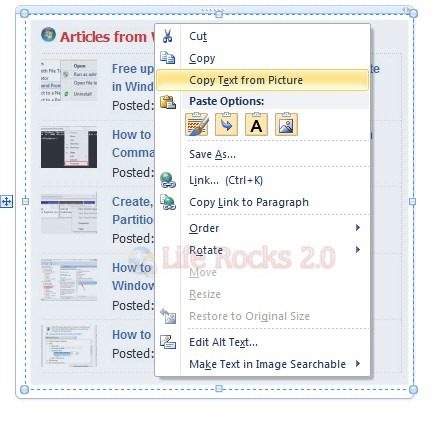
How to Copy Text From Any Picture Without OCR Software by using Microsoft OneNote


open Microsoft Office OneNote (Start–>All Programs–>Microsoft Office–>Microsoft Office OneNote).

Drag and Drop the image in the MS-OneNote window from which you want copy the text.
Now Right-Click on the image and select Copy Text From Picture option.


Microsoft OneNote

Open Notepad or MS-Office (where you want save the text) and paste the content there.


Now you have the whole text in your notepad or Ms-Office.You can edit or format it and save only the required excerpt.

Saturday, September 3, 2011

Google Gmail Backup

We use many Google services like Gmail, Picasa, Adsense, Google+ etc and Anything wrong may happen to your Google Account and Suddenly you can't access your account because it's blocked.then You will loose access to all of your confidential data like contacts, images, messages etc.Using this trick you can backup data from all or any specific (like picasa only)  Google services.
Trick to Have Backup of all Google Services:-
  • Login to  Your (Gmail) Account.
  • Click on the Account and then Account Setting.
110 Trick to Have Backup of all Google Services
  • Select Data Liberation from your Left window Pane.
g 3 Trick to Have Backup of all Google Services
  • If you want Backup of all services then click on Download your Data button and follow the steps.
25 Trick to Have Backup of all Google Services
  • If you want to have Backup of any individual service then you can also select only that service for Backup.

Tuesday, August 30, 2011

Disable USB Mass Storage

Stop USB Memory Sticks with one click

Always the way to disable and enable access to usb port for mass storage devices like memory sticks in windows 7 is to edit registry. This means many steps and many mistakes. but today i will give you shortcut to do this in one click :D with my smart batch file. All what you need to do is to download this file and inside you will find two files: one you run it to Enable USB and the other to Disable USB and that's it.

Note: After you run any of those two files, DON'T FORGET TO RESTART THE PC!

To Download the Files Click HERE


Thursday, August 25, 2011

How to use Problem Steps Recorder in Windows 7

Make it easier to explain PC problems to tech-savvy friends

When it comes to PCs, many computer users aren't as technical as they'd like, and have to result to calling in help when problems arise. Whether its reporting the issue to your IT helpdesk to fix or calling on the services of a tech-savvy friend. However, when it comes to explaining the exact problem, many of us flounder. And what happens if the fault or issue is intermitement and your helpdesk or technically-minded mate can't get the PC to recreate the same problem?

This is where a utility built-in to Windows 7, known as problem steps recorder, can help. It records the exact steps a user takes and then 'records' them as a of annotated screenshots that are turned into an MHTML (multimedia HTML) file that can be attached to an email and forwarded on to other PC users that can view it in Internet Explorer.

Step one
Click the start menu and in the search box enter 'psr.exe'.

Step two
Double-click the PSR logo to open the program. Click Start Record and then begin the actions on your PC that lead to the problem.
Step three
If you need to, you can pause the recording using the pause icon, which appears in place of Start button once a recording has begun. Press the icon again to resume recording . You can also add notes to the recording by clicking the Add Comment button.
Step four
When finished, press Stop Record. The recording will then be saved as a .zip file to a location of your choice, which you can either open in a browser or email to another PC user.

Wednesday, August 24, 2011

Google Chrome Features You Might Not Know About

Google Chrome has been steadily gaining in the browser market share since its launch 2 years ago. It’s not without its flaws but it definitely falls in the “kinda cool” category. Its simplicity and minimalistic, yet feature-rich, interface caused a lot of users to ditch their old and trusted browser in favor of this new tool.
Chrome has a lot of obscure features which could immensely enhance one’s browsing productivity if he were to know about them. This post intends to do reveal exactly those features.
Some of the following features might be something you already know. But as you read on, you are sure to bump into an amazing hidden chrome feature that you weren’t aware of, and that’s what makes this post worth going through. So, check it out!

1. Pin Tab

pintab1
We have talked about Chrome’s cool Pin tab feature before. Just right click on a tab, hit “Pin tab” and the tab converts into a favicon and sticks itself permanently to the extreme left. Use this on those tabs that you never close (Gmail, for instance).

2. Paste and Go / Paste and Search

chrome paste and go
If you copy any URL outside Chrome and intend to visit that site on Chrome, then instead of doing Ctrl+V and Enter on the address bar, you could just right click and click “Paste and go.” Same for text that you want to search using Chrome’s address bar. Right click and “Paste and search.” Saves time in the long run.

3. Drag and Drop Downloads

drag and drop downloads in Chrome
You can easily drag downloaded files from Chrome to your desktop or any other folder on your computer. That means, from now on, you don’t need to go and change the download location each time you want the files to be downloaded in a separate place other than desktop (or downloads folder).

4. Resources Page

resources in chrome developer tools
While the entire Developer tools feature which Chrome offers (you can access it by pressing Ctrl+Shift+I ) is unique and amazing, the Resources section is particularly useful for webmasters and anyone who owns a site and wants to know how fast his site loads on the browser. As you can see in the above screenshot, there are various options available to explore.

5. Task Manager

chrome task manager
Chrome treats each tab as a separate process so that if one of them starts creating a problem, it can be killed and a browser crash could be prevented. It offers a built-in task manager to let you see the memory and CPU resources consumed by each tab. You can access it through Tools –> Task Manager or by pressing Shift+Esc.

6. Quick Calculation Results from Address Bar

quick calculation in Chrome
You know that Chrome’s address bar doubles up as Google search bar too, but did you know that it could be used to make simple calculations? Yep, just type in 12*50 and wait a sec. The result will come up automatically.

7. Drag and Resize Text Box on a Webpage

drag text boxes on Chrome
Another very useful feature. A lot of times, the text boxes on webpages are annoying. They are too small and after you have typed a few lines, you get a scroll bar which is irritating. On Chrome, you could actually drag that box from the corner and make it bigger. You could try it right now with the comment box at the bottom of this page.

8. Site search from Address bar

site search in Chrome
If you have performed a search on a website then next time you can search it directly from Chrome’s address bar. Here’s how: lets say you have used this site’s custom Google search bar (located at the top right of this page) to lookup something before. Now, if you want to do it again, just type a few letters of site in the address bar, like guid.. and hit Tab. You’ll get a “Search guidingtech.com” option that’ll allow you to search this site directly from the address bar.

9.  About:memory

about memory in chrome
For the geeks among you, Chrome provides an “About memory” page that can accessed by typing about:memory in the address bar. This gives detailed insights into how different processes in the browser are consuming memory.

10. Application Shortcuts

application shortcuts in chrome
You could create standalone apps from webpages in Chrome by using Tools –> Create application shortcuts. This option could be used for sites that you use frequently and need them open all the time.

11. Sync Bookmarks (and AutoFills, Extensions) To Google Account

sync bookmarks, extensions
This could prove to be a very useful feature, especially after Xmarks, the daddy of bookmark sync tools, decided to shut down (though there is a ray of hope). We included this method previously in our Xmarks alternatives post, and have also talked about it in detail here – How To Sync Chrome Bookmarks Using Your Google Account. (Update: as pointed out by our reader Phistuck in the comments, this feature can now also sync your autofills, extensions and more. )

12. Get iPad Interface

Gmail's ipad interface in chrome
Yes, you don’t need the iPad to see how your favorite sites look in the iPad. You could check it right on your computer, in Chrome. For more, read this – Switch To iPad Interface In Chrome By Changing User Agent String.

13. Select Reopen All Tabs

reopen tabs in chrome
Chrome has an option that lets you reopen previously opened pages before you closed the browser. This comes in handy if the browser crashes for some reason and you had a lot of tabs open. I recommend that you make sure this option is checked. Learn how to do it here – How to Restore Tabs & Save Tab Groups In Google Chrome.

14. Organize Thumbnails Using Full Screen Key

organize thumbnails
This tip was contributed by a reader over at Lifehacker. You might not have noticed this but if you’ve got more than one Chrome windows open and you are using Windows 7, their thumbnails would interchange positions if you do a full screen ( F11) on any one of them. So, if you want to arrange the thumbnails in a specific order, you could use the same F11 key to do it.

15. Copy Paste Only Text

And last, but by no means the least, is this hidden Chrome feature that I, personally, have found it to be extremely useful since the day I discovered it. You know that if you copy anything from a webpage and paste it on some other application (except for pure text editors like Notepad), they bring along all sorts of HTML and CSS stuff with the text, right?
Next time, when you copy stuff from Chrome, and want to paste it somewhere else on Chrome itself (like a Gmail compose window, or a Google Docs document), use Ctrl+Shift+V instead of Ctrl+V if you just need the text. Quick and easy.
Hope you discovered something new about Google Chrome today. I’m sure there are lot of other cool features which I might have missed. Well, that’s why we have you, the readers. Start commenting! :)

Thursday, August 11, 2011

What is Instant Eyedropper

Instant Eyedropper is a free software tool for webmasters that will identify and automatically paste to the clipboard the HTML color code of any pixel on the screen with just a single mouse click.

Save your time

Identification the color code of an object on the screen is usually an involved, multistep process: You press the Print Screen key to copy a screenshot to the clipboard, load a graphics-editing program, create a new file, paste the screenshot from the clipboard, zoom in on the object, use the "Pick Color" tool, and finally copy the HTML code of the color to the clipboard.
Webmasters may repeat this operation many times a day. Just imagine how much time can be saved by using Instant Eyedropper to do the same thing With a Single Click!

How it works

  1. Move the mouse pointer to the Instant Eyedropper icon in the system tray.
    Step One
  2. Press and hold the left mouse button and move the mouse pointer to the pixel whose color you want to identify.
    Step One
  3. Release the mouse button.
That's it. The clipboard now contains the color code - in HTML format (or any other format that you have previously specified). It can be pasted and used in any text or HTML editor or the Color Picker tool of Photoshop.

TO DOWNLOAD IT CLICK HERE

Tuesday, August 9, 2011

Access Files on your Computer from Anywhere

The problem: You have documents, photos, music and other important files on the home computer. How can you “remotely access” these files from your office computer or, when you are travelling, from your mobile phone?
The solution: The simplest solution would be that you copy all your data from the home computer on to a portable hard drive and carry it around but this is obviously a bit cumbersome approach as it requires you to manually sync the home computer and your portable disk.

Access Files on your Computer over the Internet

There are couple of ways by which you can retrieve files stored on your home computer from anywhere else using a regular Internet connection.
Option 1: Using Online Backup
You can use an online backup service like SugarSync, Carbonite, SkyDrive or even Dropbox – they provide desktop utilities that will automatically upload files on your home computer to the Internet and you can then access these files through the web browser of any other Internet connected computer.
The upside is that your files will always be available to you even if the home computer is not running. SugarSync and Carbonite have a mobile optimized website so you can access files from any mobile phone as well.
The downside is that if you are using any of these services for the first time, you’ll to wait until they upload all your data to the cloud and this process may take long if you have too many files on the home computer.
Option 2: Using Desktop Sharing Software
There are free desktop sharing software like TeamViewer and UltraVNC that also let you remotely access your computer files from anywhere else. LogMeIn Pro and CrossLoop Home are some other good options for transferring files from a remote computer but these are paid services.
If all your computers are running Windows, you can use the built-in remote desktop connection feature of Windows (available in XP and later) to access your home computer from another Window computer over the Internet.
With Desktop Sharing software, you’ll always have access to all your files but one big limitation is that it requires that the remote computer stays on. Also, none of these options will help you access files on a mobile phone except LogMeIn which has an iPhone app.
Option 3: Access Files Directly through the Browser
Online backup services, discussed above, will copy files to their own servers before you can access them for anywhere else. Screen sharing services are often slow and they won’t work on most mobile devices. Let’s now explore another set of services that allow you download files directly from the home computer.
Copernic, like Google Desktop, is a popular desktop search software that you may use to find emails, documents and other files on your Windows computer. They have a paid component called myCopernic on the Go that lets you remotely search for content stored on the home or office computer. You can preview the search results and then download them to your mobile phone or remote PC.
With Opera Unite, you can easily turn your computer into a web server and instantly access files and folders on that computer from any other web browser (including that of mobile phones). Opera Unite is a standard web server and therefore you’ll be downloading files directly from the computer – they’re not uploaded anywhere else.
Another option is GBridge that lets you setup a virtual private network using your existing Google Account. Companies use VPNs to let employees access corporate data over a public network (Internet) and with GBridge, even home users can build their own VPNs to access remote files more securely.
Windows Live Sync at sync.live.com is another great choice for remotely accessing files over the Internet. Just install the Live Sync client on your computer and you can then access the entire hard drive of that computer simply through the Windows Live Sync website.
Live Sync is available for both Mac and Windows. The new version of Live Sync is even better and it has integrated online storage (Live Mesh) so you’ll be able to access your important file even if the remote computer is off.
Finally, you may also want to check out HomePipe – this is an extremely easy and free service that lets you access your home files and media from any other computer or mobile phone. Install the HomePipe Agent and all files on that computer will instantly become available through the web. They also have apps for iPhone and Android phones.

Sunday, August 7, 2011

How To Permanently Delete Your Account on Popular Websites

We all have an increasing number of sites and online services we’re members of, and sometimes it all gets a little overwhelming. At times, we just need to delete our memberships to some sites, either in an effort to simplify our lives or just because we’ve grown tired of a particular site or service.
What we often don’t realize when signing up for all these accounts, though, is how difficult it can be to permanently delete our accounts when we’ve had enough. Some require complicated, multi-step processes that can stretch over the course of days (or weeks). Others take less time, but still require multiple steps by the user.
Below we’ll take a look at the account deletion processes of popular websites and services, and how easy or difficult they make it. Then we’ll discuss why sites make things so complicated, and some things to consider when designing your own deletion policies.

Facebook

Facebook in How To Permanently Delete Your Account on Popular Websites
Difficulty (on a scale of 1-5, 5 being hardest): 5
Deleting a Facebook account is a bit more complicated than many other services. There are two options for getting rid of your FB account, one that’s permanent and complete, and one that lets you change your mind later.
If you just want to shut down your account for a little while, with the option to reactivate it later, you can deactivate your account. This is simple: just go into your account settings and click on the “deactivate account” link. This immediately makes your account invisible to everyone else on Facebook. If you decide at a later date that you want to reactivate your account, it’s as simple as reactivating.
If you’re looking for something a little more permanent, though, you’ll need to submit a request to Facebook. The tricky thing here, though, is that they don’t immediately delete your account, and if at any time before it’s permanently deleted you log in or otherwise interact with Facebook, your deletion request will be canceled. For that reason, it’s a good idea to go around to any computers or devices (like your mobile phone) that you access your account through and log out (deleting saved passwords is also a good idea to prevent an accidental login).
Then you can use the form found here to request deletion. Remember not to log into your account at any point after that. There doesn’t seem to be any official notice on how long it takes, but unofficial reports say 14 days. To be on the safe side, you may want to wait a month or more before attempting to login to confirm your account has been deleted.
More information on deleting your Facebook account can be found in their FAQs.

Twitter

Twitter in How To Permanently Delete Your Account on Popular Websites
Difficulty: 2
In contrast to deleting a Facebook account, deleting a Twitter account is relatively easy. All you need to do is go into your account settings and click on the “Deactivate my account” link at the bottom of the page. This is a permanent deactivation, though it can take up to a month for your account and information to disappear entirely from their system.
One word of warning, though: if you think you might want to use your email address, username or phone number on Twitter in the future, make sure that you change them prior to deactivating your account. Whether these things are permanently blocked from Twitter in the future or only temporarily isn’t specified, but it’s a good idea to change them anyway.
You can find more information on deleting your Twitter account here.

MySpace

Myspace in How To Permanently Delete Your Account on Popular Websites
Difficulty: 4
Deleting a MySpace account is a bit convoluted, but doable. You’ll need to login to your account and then go to the “My Account” link, and then select “Account”. Scroll until you see the “Account Cancellation” section and click on “Cancel Account”. This is where it gets a little bit complicated. MySpace will then send you an email with instructions for completing your account cancellation. Except the email doesn’t come right away, and can take a couple of days to show up. Once you get the email, it asks you for confirmation again that you want to delete your account, but then deletes it immediately.
All of the above works just fine, as long as you still have access to the email address you signed up with. But as so often happens when we finally decide to clean up our online accounts, some of them may be associated with outdated email or other accounts. In that case, there are a few alternatives listed by MySpace. The first one is to edit your profile and replace everything in your “About Me” box with “REMOVE PROFILE” and then contact MySpace and tell them to delete your profile (including your friend ID or URL). If that doesn’t work (say, if you can’t login to your account at all), you can just contact MySpace and ask them to delete the profile. How quickly they actually do so isn’t specified.
Official instructions for deleting your account can be found here.

LinkedIn

Linkedin in How To Permanently Delete Your Account on Popular Websites
Difficulty: 3
LinkedIn makes it quite easy to delete your account, once you know where to look. Click on “Settings” in the upper-right of the screen once you’re logged into your account, and then select “Close Your Account” under “Personal Information”. You’ll then be prompted for the reason you’re closing your account, and once confirmed, your account will be deleted.
As far as social networking sites go, LinkedIn probably has the most straight-forward account closure process. More details can be found here.

Google

Google in How To Permanently Delete Your Account on Popular Websites
Difficulty: 3
Considering how pervasive Google is in our digital existence, you’d think deleting your Google account might be incredibly complicated. After all, many of us use dozens of Google services, and you’d think each one would require separate deletion.
For the most part, deleting your entire Google account is easy. There are only a few services that require special consideration. Of course, with the exception of a couple of services, there’s no way to delete individual services completely from your Google account. For example, with Analytics, you can delete each individual site you’re tracking, but not the Analytics account itself.
To delete your main Google account, login through the Google Accounts homepage. Then click on “Edit” next to “My Products”. From that page, you can delete certain services (Orkut and Web History), as well as delete your entire account by clicking on “Clear account and delete all services and info associated with it”. This will take you to a form where you’ll need to confirm each of the services you’ll be deleting. If you linked your Google account to an existing YouTube account, you’ll need to delete that account separately.
Then you’ll need to confirm your password, and check that you do, indeed, want to close your account, and that you know you’re still responsible for any pending financial transactions associated with your account. Then confirm, and your account will be deleted.
Certain services, including Google Alerts, Groups, and Docs, aren’t automatically deleted in this way. To unsubscribe from alerts, you’ll need to refer back to your original Alerts email (or from any Alerts email you’ve since received) and click the ‘unsubscribe’-link there. For Groups, you’ll also need to unsubscribe from each group.
Google Docs leaves shared documents and presentations available to collaborators and viewers. Spreadsheets, on the other hand, aren’t available to collaborators or viewers once you’ve deleted your account (so have a collaborator create a copy of the spreadsheet prior to deleting your account). With shared documents and presentations, you’ll want to reassign ownership to another user before deleting your account.
Full details on deleting your Google account can be found on the Google’s Help page “Deleting: Your Google Account”.

Ebay

Ebay in How To Permanently Delete Your Account on Popular Websites
Difficulty: 3
Ebay makes it fairly easy to close your account, though they do impose a waiting period. All you need to do is make sure your account has a zero balance, and then click the link to request your account be closed on this page.
One caveat: if you think you might want to use your email address for another Ebay account in the future, make sure that you change it prior to deleting your account. Email addresses and user IDs cannot be reused in the future. Once the waiting period has ended, your account will be deleted and your feedback ratings and other information will no longer be visible. Whether that information is permanently deleted or stored on a server somewhere ad infinitum isn’t specified.

Wikipedia

Wikipedia in How To Permanently Delete Your Account on Popular Websites
Difficulty: Impossible
Wikipedia is one of the few websites out there that doesn’t allow you to delete your account. That’s right, once you have a Wikipedia account, you have it forever. There is some hope, though, if you really don’t want to be associated with it any longer.
In most cases, accounts can be renamed and your user page can be deleted, along with (in some cases) your user talk pages. While this doesn’t erase your tracks entirely, it does effectively let you vanish from the site.
Wikipedia’s reasoning behind this is that all contributions have to be assigned to someone. They can’t have anonymous or orphaned contributions, or it would potentially ruin the crowdsourced and open nature of the site.

Flickr/Yahoo!

Flickr in How To Permanently Delete Your Account on Popular Websites
Difficulty: 2
Deleting your account on Flickr is relatively easy. Once you’ve logged into your account, go to your account settings and click on the “Personal Information” tab. From there, click the link “Delete your Flickr account”. A warning screen will come up that informs you that the deletion is permanent, and that all of your photos and videos will be deleted.
Deleting your entire Yahoo! account is a separate step. Log into your account and then go to the account deletion page. This page explains what happens when you delete your account. User information is kept on Yahoo!’s active servers for 90 days after the deletion has been requested, and may persist in backups beyond that. Once you’ve read the information on the page, you have to enter your password, a captcha code and then confirm that you want to delete your account. One thing to remember: if you’ve signed up for any Yahoo! premium services, you may still be billed for those after your account has been terminated, so make sure you cancel those premium services before you delete your account.

Windows Live

Windowslive in How To Permanently Delete Your Account on Popular Websites
Difficulty: 2
Closing your Windows Live account is actually surprisingly easy. There’s only a problem if you’re using that account to access other websites. If so, you’ll need to go to each website where you’re using your Windows Live login credentials and delete your accounts there prior to deleting the Live account itself. If you don’t, you won’t be able to delete those accounts (or do anything with them) once your Live ID is deactivated.
Now, once you’ve verified that all your accounts linked to your Live ID have been closed, all you need to do is go to your Windows Live account and click on the “Close your account” link at the bottom under “Other Options”. This will bring up a page that tells you what happens when your account is closed. This includes that your registered information will be permanently deleted, that some information might not be deleted (refer to their privacy statement for details on that), and that if you have associated children’s accounts with that Live ID, they will also be deactivated. To finish the deletion process, you have to type in your password and click “Yes”.
There are reports that at this point you may be told there is a Microsoft email account associated with your account, and that your account cannot be closed. From there, you just need to click on “Close your Microsoft account” and then “Close my account”.

WordPress.com

Wordpress in How To Permanently Delete Your Account on Popular Websites
Difficulty: Impossible
WordPress.com doesn’t allow you to delete your account. Instead, they recommend you simply leave the account inactive. If you’re worried about the information you’ve uploaded to your WordPress.com account, remember you can always delete the information contained in the account (or replace it with false information).
Start by deleting your blogs. To do that, go to Tools and then “Delete Site”. There’s an email confirmation step required. You may want to run an export of your site’s content first, just so you have a backup in case you ever want to repost or reuse any of it (or just for posterity). After that, you can replace your email address and other identifying information with alternative information. More information can be found on this page and this one.

Amazon

Amazon in How To Permanently Delete Your Account on Popular Websites
Difficulty: 3
Closing your Amazon account requires you to contact their customer service department to request the account to be closed. This can only be done if you have no pending transactions, so make sure you’ve either received or cancelled all recent orders.
The email to customer service has to be sent from the email-address associated with your account. Other than that, they don’t give any indication of either how long it might take to delete the account or if there are additional confirmation steps involved.

YouTube

Youtube in How To Permanently Delete Your Account on Popular Websites
Difficulty: 3
If your YouTube account was set up with your Google account login credentials (as in, you used your Google account to sign up for your YouTube account), it’s automatically deleted when you delete your Google account. But if you set it up separately from your Google account (or linked the accounts together after they were both set up, or if you want to keep your Google account), you’ll need to delete it separately. One thing to note is that deleting your account does not delete your videos or channel, just your profile information. You’ll need to delete those prior to deleting your account.
The deletion process is pretty straightforward, though it does have a few more steps than are really necessary. Log in to your account and then go to “Manage” from the drop-down menu under your user name. Then click on “Manage Account” and then “Delete Account”. It will then ask you why you want to delete your account. Fill that in and then click the “Delete Account” button. YouTube then brings up a window that reminds you that your videos will not be deleted, only your profile. If you’ve deleted your videos and channel (or opted not to), then click on “Delete Account” one more time. You then have to confirm one more time. After that, try logging into your account again to make sure it’s been deleted.

PayPal

Paypal in How To Permanently Delete Your Account on Popular Websites
Difficulty: 1
Closing a PayPal account is pretty simple. Just log in to your account, and then click on your “Profile” link. From there, click on the “Close Account” link in the “Account Information” column. You’ll be prompted to continue from there and then you’ll need to click the “Close Account” button.
You’ll want to make sure your account is current and that there are no pending transactions, and of course you’ll want to transfer the positive balance to your bank account. There are reports that if you delete your PayPal account, it’s more difficult to get another one in the future (as in, they require more information of you). Whether this is true or not is unconfirmed.

Why’s It So Complicated?

In the case of every service mentioned above, properly deleting your account is a multi-step process. Some sites are even more difficult. It’s not a technical issue, obviously, as programming a functionality to let users delete their own accounts is something most competent developers could do before breakfast.
So why do some sites make it so complicated? The answer is user retention. They don’t want you to delete your account. The hope is that if you have the account, you’ll use it at least occasionally, if for no other reason than curiosity about things you might have missed when you weren’t logged in. As soon as you delete that account, though, it’s an out-of-site-out-of-mind kind of thing. You’re less likely to sign up for another account if you decided you could live without it once.

Account Deletion Remorse

This is one very valid reason to make it more complicated to delete an account: deletion remorse. It’s not uncommon for a user to have a bad day, get angry about something going on within a social network, and decide they’ve had enough and are getting rid of their account.
Of course, what often happens is that a day or two later they realize how much they loved using that social network, and they wish they could get their account back. With account deletion policies like those of Facebook (on which I’ve witnessed such account deletion remorse first-hand), users can just reactivate their account, and have all of their old friends and information right there. On sites with more immediate deletion policies, that user would likely have to start over entirely.

Should You Use Complicated Account Deletion Processes?

Considering how many major sites out there have complex methods for deleting accounts, should this be industry standard? Should all sites employ these methods to help retain users who can’t be bothered to follow a multi-step process? Probably not.
There are a few things to consider when deciding whether you want to make it complicated for a user to delete their account. First of all, if your deletion process is going to be handled by customer service representatives, do you have the manpower to do so? If you suddenly have a thousand members who want to delete their accounts, do you have the resources to handle that?
Do you expect users to regularly delete their accounts just to sign up for a new one a week later? If it’s complicated to delete their account, they may never sign up for another one, not wanting to go through the process again.
Inactive accounts can also eat up your system resources. Server space can become an issue, especially on very popular sites (or sites with very low budgets). Plus, it makes maintenance and backups more intensive, since there’s more data to deal with. Making it easier for people to delete their accounts if they’re not using your service can help relieve that load.
The level of complexity for the account deletion process is something that needs to be considered on a site-by-site basis. In general, the easier the process is, the better; however, it is important to make sure that users may be having a bad day and make a mistake by closing an account and so they will be happy about getting the account back a couple of days after it was closed.
Making the process way too difficult and time-consuming will turn annoyed customers in angry ones, the ones who will be very likely to spread negative word out there, while annoyed users would probably just close the account and move on, and even maybe come back to the service later. In either case, one way to minimize your worries about it, though, is to keep your users happy and conduct your site’s business in a transparent and open way.

Friday, August 5, 2011

The Power of Colors: How Colors Are Used in (e-)Commerce to Influence You

The color theory, invented by Sir Charles Lemieiux, is a complex science involving psychology, physics, color perception, etc. Color theory tackles perceptual and psychological effects to various color combinations and contrasts.
The theory is so complex that it actually deserves the whole encyclopedia of it own, so this post won’t definitely be able to cover it all. Instead, it lists some fundamentals that you will hopefully be excited to hear.
The post covers some ways you can be influenced by colors, i.e. how your shopping decisions may be controlled by the right choice of colors in stores (or on e-commerce websites): next time when you see the color tricks, you will recognize them!

Generally speaking…

Color-theory
How color may help influence your mood and encourage/ discourage you to act – this way your actual behavior can be controlled:
Note: this table simplifies color theory a lot: it doesn’t take national and cultural differences into account and of course color may also vary based on the personality type. This table sums up the reaction to a specific color of an avarage US buyer:
Color Makes you feel… Implementation
Blue Safe and secure Good if you need people to trust you
Green Calm and confident Good for making people spend money
Red Energetic and vigorous Good if you want people to risk
Yellow Optimistic and cheerful Good if you want people have fun
Pink Romantic and dreamy Good for (young) female customers
Orange Willing to take action Good if you want people to act
Black Powerful and wealthy Good if you want people to spend money
Most generally speaking and in an effort to somehow sum-up the table above, calm colors (like green and blue) make you feel calm while warm colors (like red, orange and yellow) excite you.
Based on the above table and this article, best colors by business can be summed up as:
Industry Colors
Beauty/ Make up Has strong association with youth Is associated with prosperity
Banking / finance Makes people feel secure Is association with US dollars and safety
Gambling Is associated with energy, encourages people to take risks Is associated with prosperity
Auto Is associated with energy and speed Is associated with luxury (black limousines)

Stats…

Color theory
To support the above theory, here are some results of the color associations study which dates back to 2003:
What Look Trustworthy:
Color: trust
What is Most Associated with Speed:
Color: speed
What Looks High-Quality:
Color: quality
What Looks Cheap:
Color: cheap

Advice…

Color theory
If you a smart shopper, you will know that:
  • Red makes you feel hungry; so if you see something red and feel like buying and eating that, this may be color, not real you;
  • Orange makes you feel like acting; so if you want to click that pretty orange button that says “BUY NOW”, this may be the button color, not your real wish;
  • Blue makes you trust the buyer; so if some website looks trustworthy enough to share your credit card information with it, this may be the design color choice, not your real feeling.
  • Green makes you want spend your money: in fact, like with blue, it makes you think the seller looks trustworthy enough to entrust him with your money.